

The Pipeline
Start with a Strong Keyframe
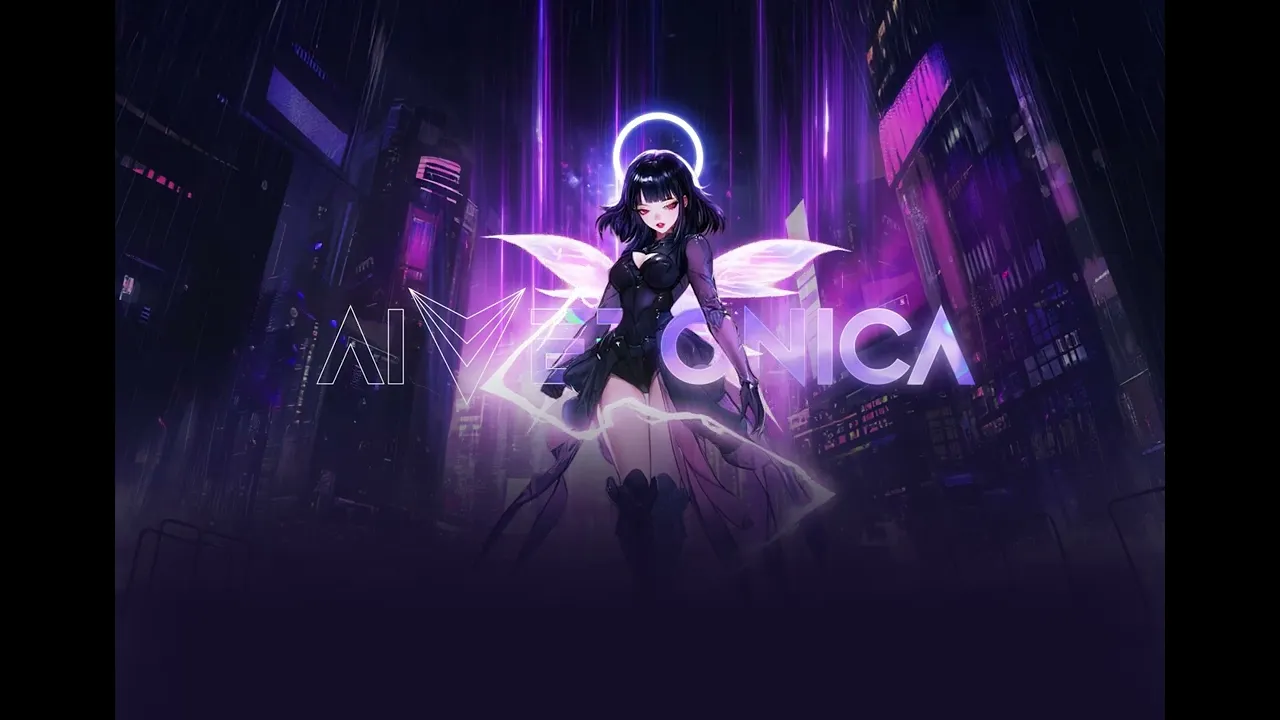
Everything begins with a high-quality static image. Whether it’s a 3D render, a digital painting, or a Midjourney base, this is your Start Frame.Let Gemini Do the Thinking
I feed the image into Google Gemini to analyze the scene.
• The Goal: Ask Gemini to describe the lighting, particle movements, and textures.
• The Output: It generates a detailed Video Prompt that I can plug directly into the AI video engine. This saves me from
guessing what works.Kling AI: Image-to-Video
Upload the keyframe to Kling AI and paste the Gemini prompt.
• Why Kling? It’s currently one of the best for temporal consistency (keeping the character/environment from morphing into weird shapes).
• Tip: Set the motion strength low if you want a subtle "living painting" feel.QC & Filtering
Don't just take the first result. Check for artifacts (glitches) or weird warping. If the movement is smooth and looks "correct," it’s ready for the final polish.The Final Comp in After Effects
This is where you make it look "pro" and less "AI."
• Color Grade: Match the mood to your game's UI/art style.
• Cleanup: Use the Clone Stamp or Masks to fix any AI glitches.
• Add "Juice": Layer in real VFX—dust motes, lens flares, or light leaks.
• Grain: Adding a subtle film grain helps hide AI compression and makes the video feel more cinematic.
Final Thought
AI is great for the heavy lifting (the motion), but After Effects is where you actually control the final look. Don't skip the compositing step—that’s where the "art" happens.